

Losing a passport abroad is stressful in a way that’s hard to describe unless you’ve been there. The nearest embassy might be hours away, and everything grinds to a halt. The same applies to that moment at a check-in counter — frantically searching for a printed confirmation that isn’t where you thought it was. Having your travel documents digitally organized doesn’t prevent loss, but it completely changes what loss costs you in time, money, and stress.
This guide covers how to structure, scan, encrypt, and access your travel documents from your phone. That includes what to do when you have no internet connection at all.
Why Digitizing Your Travel Documents Is Worth the Setup Time
The practical case is clear. The German Federal Foreign Office recommends keeping a digital copy of your passport or national ID precisely for theft and loss scenarios abroad. A clear, legible digital copy helps embassy staff verify your identity faster and coordinate with authorities back home more efficiently. It doesn’t replace the original — but it significantly cuts the time it takes to get a replacement issued.
Beyond emergencies, the everyday benefits add up. No more shuffling through printed reservations at a hotel desk. No more checking your bag three times for the insurance paperwork. A well-organized digital archive puts your flight ticket, travel insurance, and visa in front of you within seconds — regardless of whether you printed anything before leaving.
One thing most people overlook: a digital system is only as useful as the structure behind it. A phone full of random screenshots and files named “scan001.pdf” isn’t an organized archive. It’s a different kind of chaos.
Step 1: Build a Folder Structure You’ll Actually Use
The real-world test of any folder structure is simple: can you get to the right document in under ten seconds, under pressure, possibly jet-lagged, with a line of people behind you? That’s what you’re designing for.
German consumer protection agencies and experienced travel planners recommend organizing documents either by trip or by category. Both work. What matters is consistency — pick one and keep it.
Use clear, specific file names from the start. Something like 2026_USA_Passport_Jane.pdf takes two extra seconds to type and saves five minutes of confusion when you actually need it. Your phone’s search function works best when names are logical and descriptive.
A practical category-based structure looks like this:
- Identity & Visas: Passport scans, national ID cards, visas, driver’s licenses, and any international vaccination certificates.
- Bookings: Flight tickets, hotel reservations, car rental confirmations, and activity bookings.
- Finance & Insurance: Credit card copies (front and back), travel health insurance documents with emergency numbers, and key contacts.
- Health: Allergy documentation, medical certificates, and any medication plans relevant to your trip.
If you travel with family, add a subfolder per person inside the Identity folder. Searching for three passports at border control under time pressure is genuinely harder than it sounds.
Step 2: Scan Your Documents Properly — Don’t Just Photograph Them
A photo taken with your phone camera is not a document scan. That distinction matters more than most people realize.
Photos of passports and printed tickets are frequently unusable: glare off laminated surfaces, distorted perspective, a shadow cutting across a key number, a slightly blurry corner. When an airline agent or embassy staff member reads your document on a small screen, legibility is everything.
Use a dedicated scanning app instead. Microsoft Lens is free, available on both iOS and Android, and consistently reliable. The iOS Notes app has a built-in scanner that produces clean results. Google Drive’s app includes a scanning function that works well for Android users.
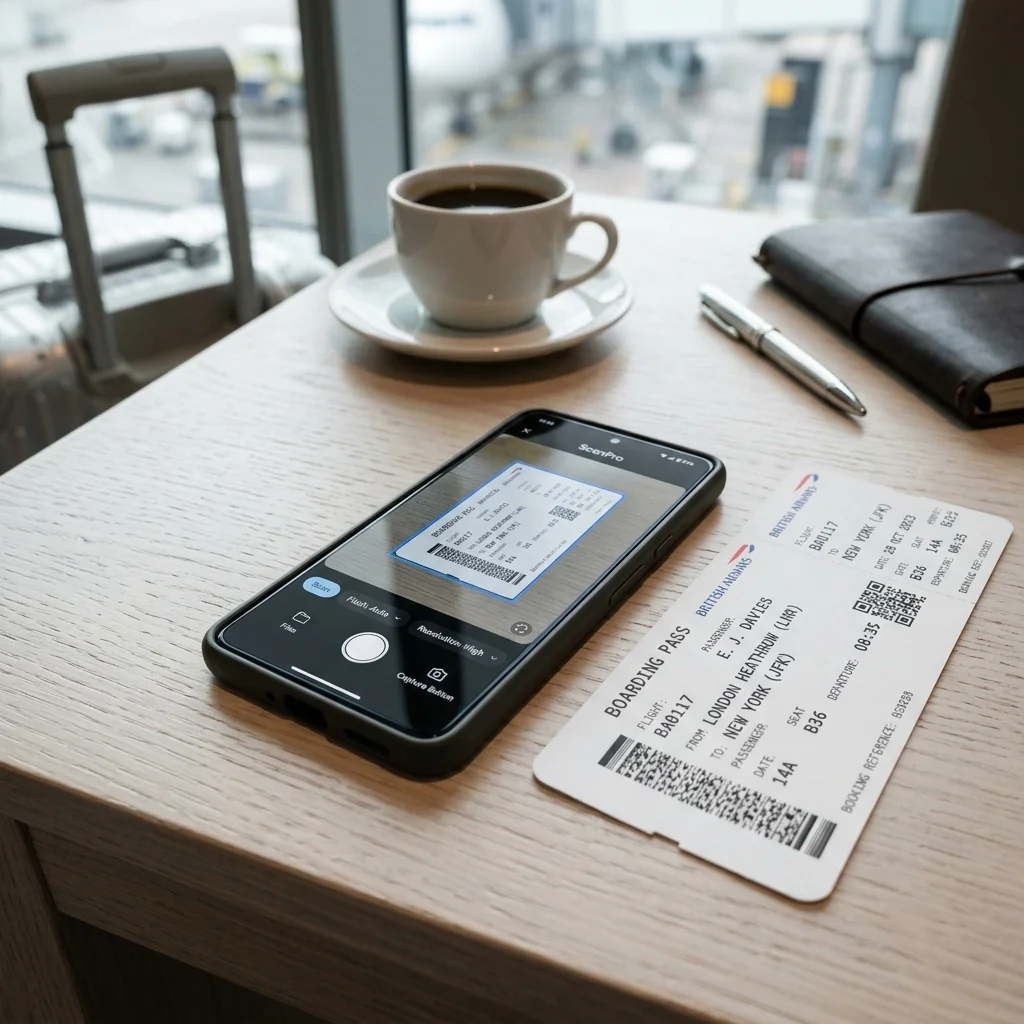
One common mistake: scanning documents once and never checking the output. Open every scan and actually read it before you travel. If a number is hard to make out, rescan it now — not at the airport.
Step 3: Encrypt Everything Before It Goes Anywhere
Travel documents contain some of the most sensitive personal data you own. Passport numbers, home addresses, insurance policy details — none of this should ever sit unprotected in a standard cloud folder or in your phone’s photo gallery. The good news is that proper encryption is simpler to set up than most people expect.
There are two well-established approaches, and which one suits you depends on how much you’re storing.
Option A: An Encrypted Cloud Vault with Cryptomator
Cryptomator is a free, open-source app that creates an encrypted vault inside your existing cloud storage — OneDrive, Google Drive, Dropbox, or any service you already use. Every file is encrypted on your device before it ever reaches the cloud server. The cloud provider itself cannot read your documents, even in principle.
Setup takes around fifteen minutes. After that, you access your vault through the Cryptomator app using your password, and everything inside appears as normal files and folders. For anyone building a large, well-structured document archive, this approach is hard to beat.
This is the better option if you have many documents, travel with multiple people, or want full control over your folder hierarchy.
Option B: Secure Document Storage in a Password Manager
Password managers like Bitwarden, 1Password, and KeePass include secure note sections and encrypted file attachments. This works well for keeping a passport scan directly alongside the login for a related travel account, for example. Encryption strength is high — comparable to Cryptomator — and the mobile interface is clean.
The practical limitation is file management. Password managers are not designed to handle dozens of PDFs across a nested folder structure. If your archive is small — a handful of key documents per trip — this approach is actually simpler. If your archive is large and growing, Cryptomator handles the organization better.
There is no wrong choice between the two. The wrong choice is using neither.
Step 4: Set Up Offline Access Before You Leave Home
This is where most digital document systems fail in practice. People build a well-organized, encrypted archive — then arrive at a foreign airport with no signal and no way to open any of it.
Reliable internet access is not guaranteed at foreign airports, transit zones, or rural destinations. Assume the connection won’t be there at the moment you need it most.
In Google Drive, Dropbox, and most similar apps, you can mark individual files or folders and enable the “Make available offline” option. This downloads a local copy to your device that remains accessible without any network connection. Do this for every document in your travel archive. Do it at home on your regular WiFi — not in a hotel the night before departure.
For Cryptomator users, verify your vault is locally cached on your device before leaving. For password manager users, confirm that attached files are synced and accessible offline through the app settings. Each app handles this slightly differently, so test it before you travel — not during.
How to Use Apple Wallet and Google Wallet for Boarding Passes
Boarding passes and train tickets are best managed through Apple Wallet or Google Wallet. Not as PDFs in a folder, but as native passes directly in the wallet app.
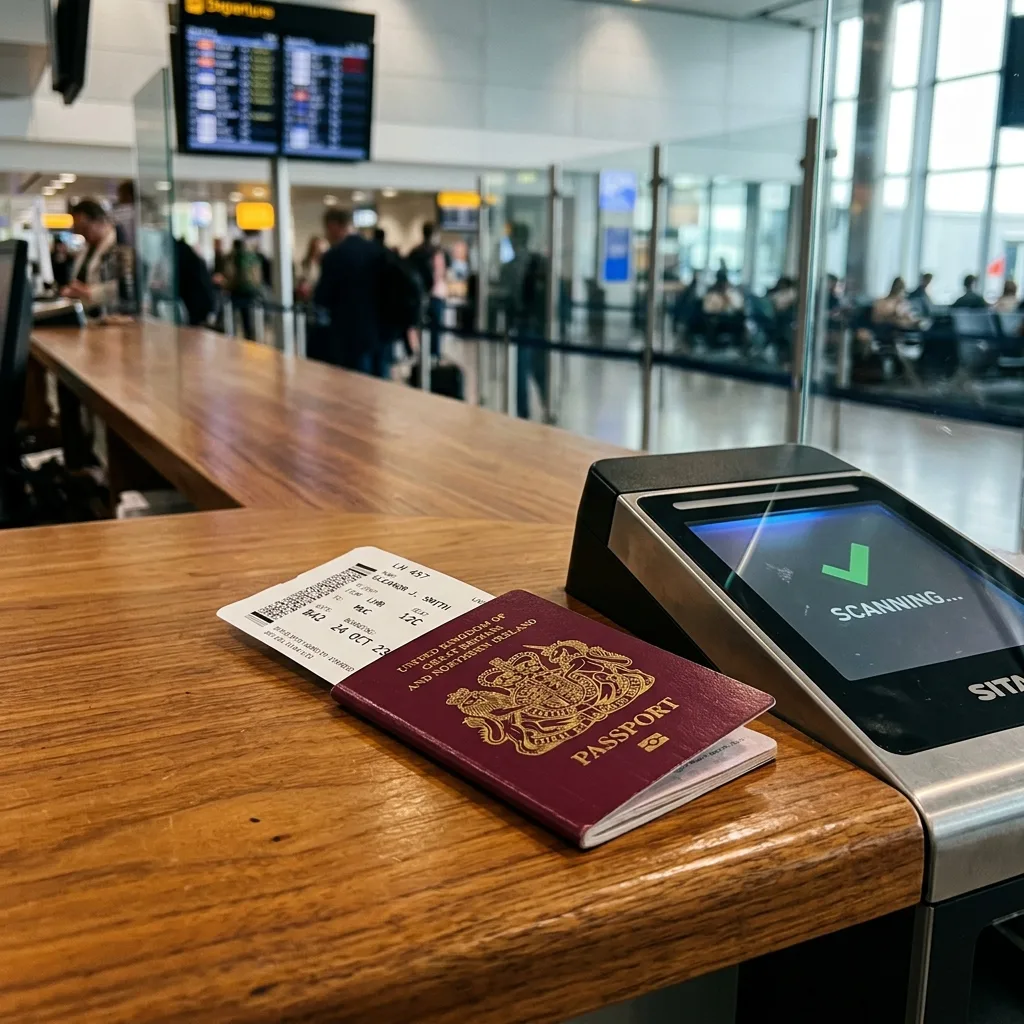
Most airlines and rail operators let you add tickets during or after online check-in. One tap in the airline’s app, and the boarding pass appears in Wallet, ready to scan. On Android, if an airline doesn’t support Google Wallet directly, taking a screenshot of the boarding pass often works. Google Wallet can recognize the barcode in that screenshot and import it automatically as a digital pass.
The real advantage is speed. Apple Wallet and Google Wallet are accessible from the lock screen without unlocking your phone. They function entirely offline. At a busy gate or a packed platform, that’s exactly what you want — no PIN, no loading screen, no password prompt.
Limitations and Legal Realities You Need to Know
A digital document system is genuinely useful. It is not a complete substitute for physical documents, and treating it like one creates its own problems.
- A digital passport copy is not a legal travel document. Border control requires your physical passport. No country accepts a scan on a phone screen as a valid entry document. Carry the original, always.
- Public WiFi is not a safe place to download sensitive files. Hotel networks, airport hotspots, and café connections are frequently unencrypted or poorly secured. If you need to access or sync documents while traveling, use your mobile data connection or a VPN. This applies even when the network looks legitimate.
- Your phone battery will run out at the worst possible moment. A powerbank is part of the system, not optional gear. Also keep a printed copy of your passport scan stored separately from your main bag and your valuables. If your phone and wallet are stolen together, that printed backup is what gets you to the embassy.
Building a System That Holds Up on the Road
What separates a working digital document system from a theoretical one is whether it survives actual travel: a dead battery, an unfamiliar airport, a canceled flight at midnight, a data connection that simply isn’t there.
The combination that holds up best: a structured folder archive encrypted with Cryptomator or a password manager, synced offline to your phone before departure. Add a printed passport copy kept in a separate pocket, boarding passes loaded into Wallet, and the habit of never opening sensitive files on public WiFi without a VPN active.
Set it up once at home. Test it once before you leave. After that, you won’t think about it again — until it saves you from exactly the situation you built it to handle.
Quick Comparison
| Storage Option | Best For | Folder Structure Support | Cloud Integration |
|---|---|---|---|
| Cryptomator | Large archives, family travel, and full control over folder hierarchy | Full support; ideal for complex nested structures and multiple files | Creates encrypted vaults inside existing cloud services (OneDrive, Google Drive, Dropbox) |
| Password Managers (e.g., Bitwarden, 1Password) | Small archives and keeping a handful of key documents per trip | Limited; not designed for dozens of PDFs in nested folders | Stores encrypted attachments directly alongside login accounts and notes |
Sources
- German Federal Foreign Office — Guidance on Lost Travel Documents Abroad
- Verbraucherzentrale — Data Protection and Secure Cloud Storage
- Onlinesicherheit.gv.at — Guide to the Secure Digitization of Documents
- Cryptomator — Open-Source Encryption for Cloud Storage
- German Diplomatic Missions Abroad — Emergency Passport Replacement
Frequently Asked Questions
Is a digital copy of a passport legally valid for travel?
No, a digital passport copy is not a legal travel document. Border control always requires your physical passport. A digital copy is only meant to help verify your identity and speed up the replacement process at an embassy if the original is lost or stolen.
Which encryption option is better: Cryptomator or a password manager?
Cryptomator is better for large, nested folder structures or family travel archives because it encrypts vaults within your existing cloud storage. A password manager like Bitwarden or 1Password is simpler for small archives with only a few documents, allowing you to attach scans directly to specific credentials.
How do I scan documents to ensure they are readable?
Use a dedicated scanning app like iOS Notes or Google Drive rather than just taking a standard photo. These apps automatically crop to the document edges, correct perspective, and sharpen text contrast. Save the scan as a PDF to maintain readability and searchability.
Can I access my encrypted documents without an internet connection?
Yes, but you must enable offline access in your cloud storage or password manager app before you leave. This downloads a cached copy to your device, ensuring you can open files at border control or in transit zones without any mobile network or WiFi connection.
Is it safe to download my travel documents using public WiFi?
No, public WiFi networks at hotels, airports, and cafés are often unencrypted and insecure. If you need to access or sync sensitive files while traveling, use a virtual private network (VPN) or your mobile data connection.
